Most Viewed Products
-
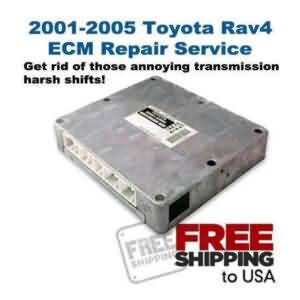 2001-2005 Toyota Rav4 ECM Repair Service
119948 Views Original price was: $175.00.$159.00Current price is: $159.00.
2001-2005 Toyota Rav4 ECM Repair Service
119948 Views Original price was: $175.00.$159.00Current price is: $159.00. -
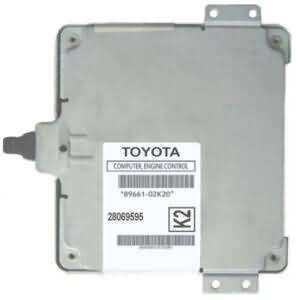 2005-2007 Toyota Corolla Automatic ECM 89661-02K20 VIN Included
35329 Views $216.87
2005-2007 Toyota Corolla Automatic ECM 89661-02K20 VIN Included
35329 Views $216.87 -
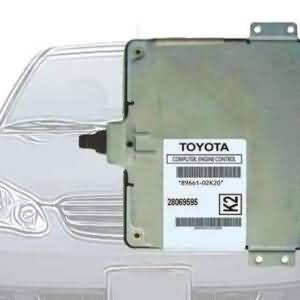 2005-2008 Toyota Corolla and Matrix Immobilizer Reprogramming Service (VIN included)
35171 Views $99.00
2005-2008 Toyota Corolla and Matrix Immobilizer Reprogramming Service (VIN included)
35171 Views $99.00 -
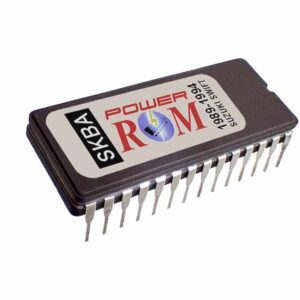 Suzuki Swift GT / GTi Performance Chip (1989-1994 models 1.3L G13B)
25701 Views $75.00
Suzuki Swift GT / GTi Performance Chip (1989-1994 models 1.3L G13B)
25701 Views $75.00 -
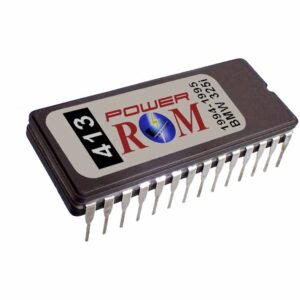 Performance Chip for the 1994-1995 BMW 325i / 525i 2.5L Vanos
22311 Views Original price was: $99.00.$80.00
Performance Chip for the 1994-1995 BMW 325i / 525i 2.5L Vanos
22311 Views Original price was: $99.00.$80.00
*Sale ends in only 4 days! (06-13-2026)Current price is: $80.00.
Top rated products
-
Performance Chip for the 1994-1995 BMW 325i / 525i 2.5L Vanos
Original price was: $99.00.$80.00
*Sale ends in only 4 days! (06-13-2026)Current price is: $80.00. -
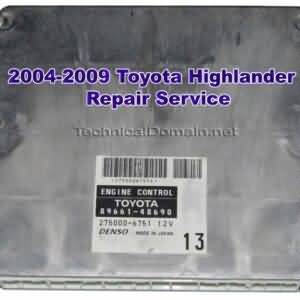 2004-2009 Toyota Highlander ECM repair service
$159.00
2004-2009 Toyota Highlander ECM repair service
$159.00
-
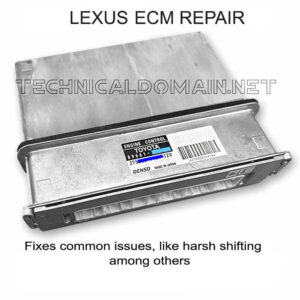 Repair service for the ECM of the 2001-2006 Lexus LS430
Original price was: $199.00.$159.00Current price is: $159.00.
Repair service for the ECM of the 2001-2006 Lexus LS430
Original price was: $199.00.$159.00Current price is: $159.00.
-
2005-2007 Toyota Corolla Automatic ECM 89661-02K20 VIN Included
$216.87
-
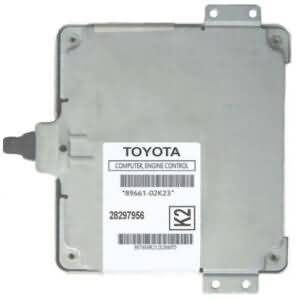 2005-2007 Toyota Corolla Automatic ECM 89661-02K23 VIN Included
$218.06
2005-2007 Toyota Corolla Automatic ECM 89661-02K23 VIN Included
$218.06